

This tutorial will provide insights into the analytics section and guide you on how to assess your team's performance effectively.
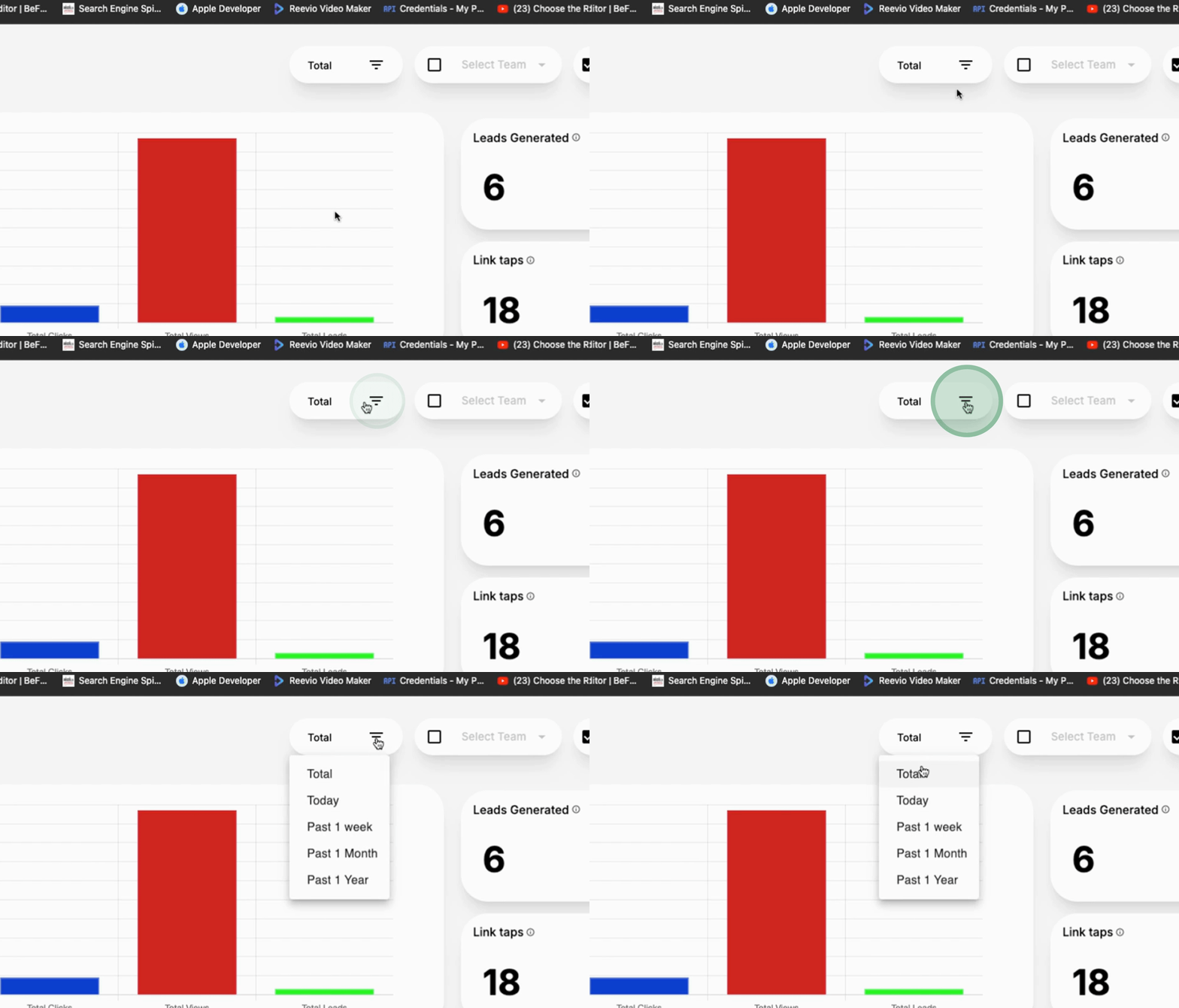
Navigate to the Analytics section and select the Filter option.
This will allow you to filter results based on various time frames, including today, past week, past month, and past year, enabling you to assess how your teams are ramping up.
In the Filter section, check the option to select based on Sub Teams.
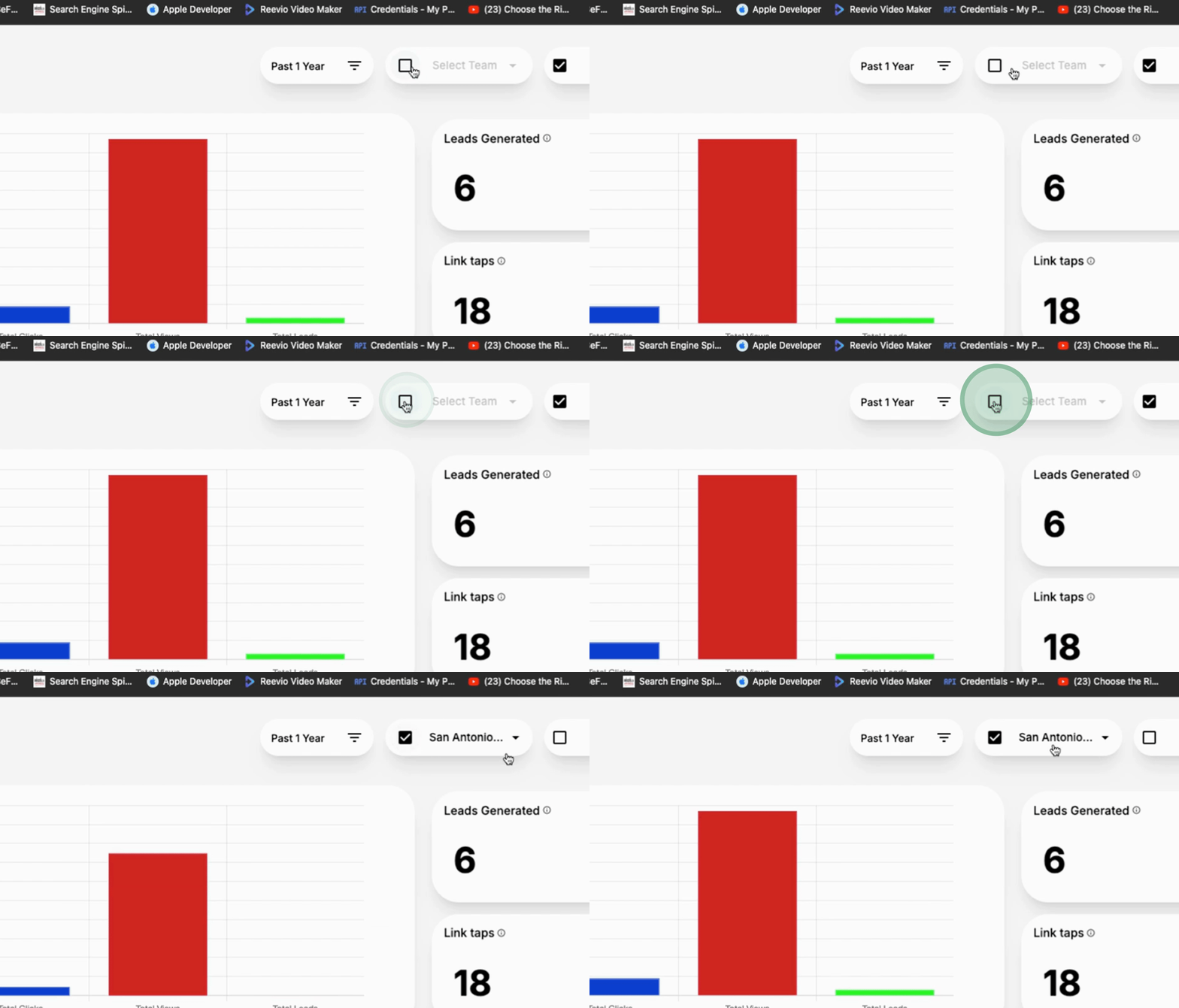
If you have created Sub Teams, you can examine their performance as an aggregate by reviewing the report based on the number of link clicks.
To analyze performance based on individual team members, access the section to view the performance metrics for all team members.
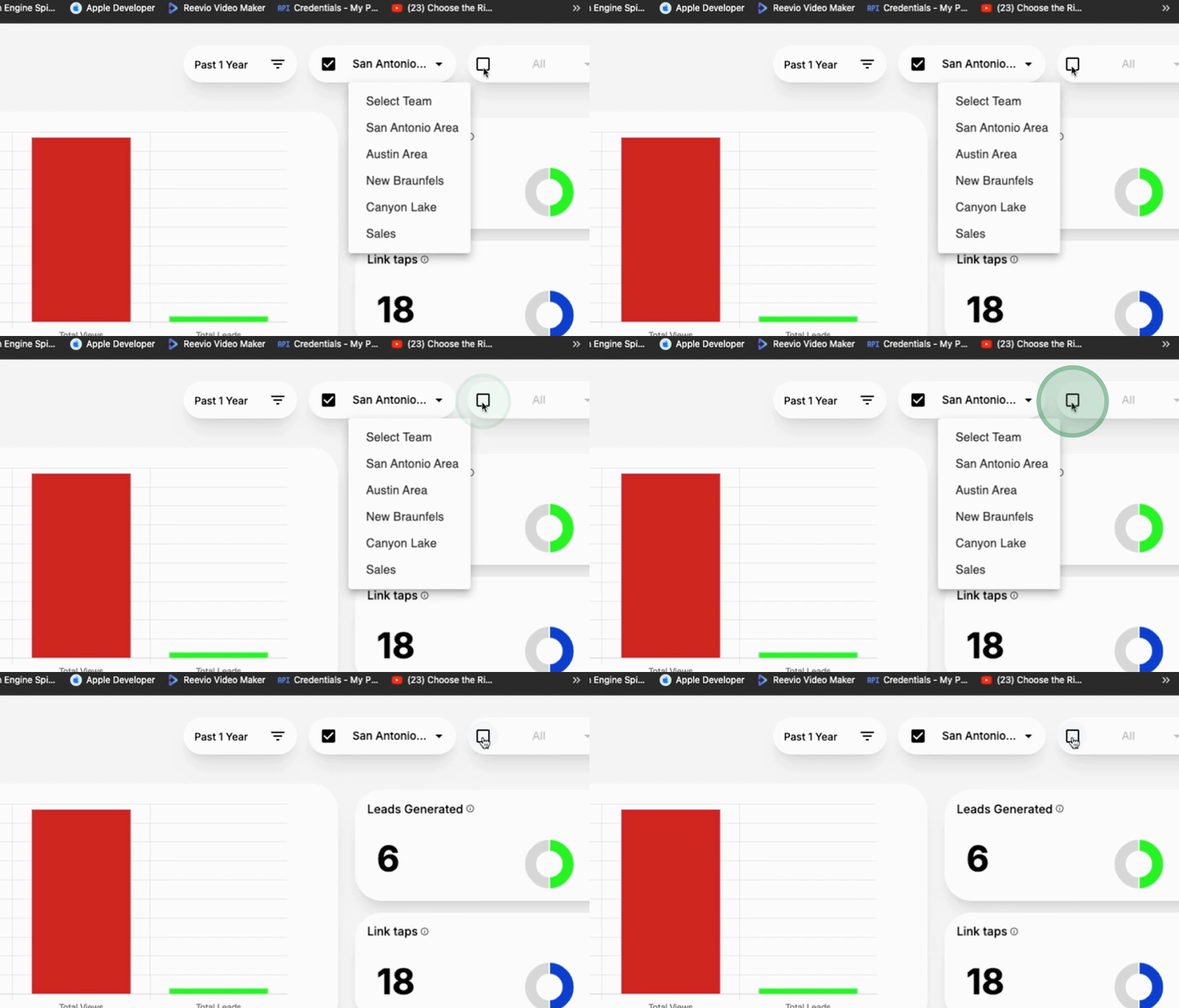
To view the entire team's activities as a whole, select the option to see all, which will display all activities occurring within your company.
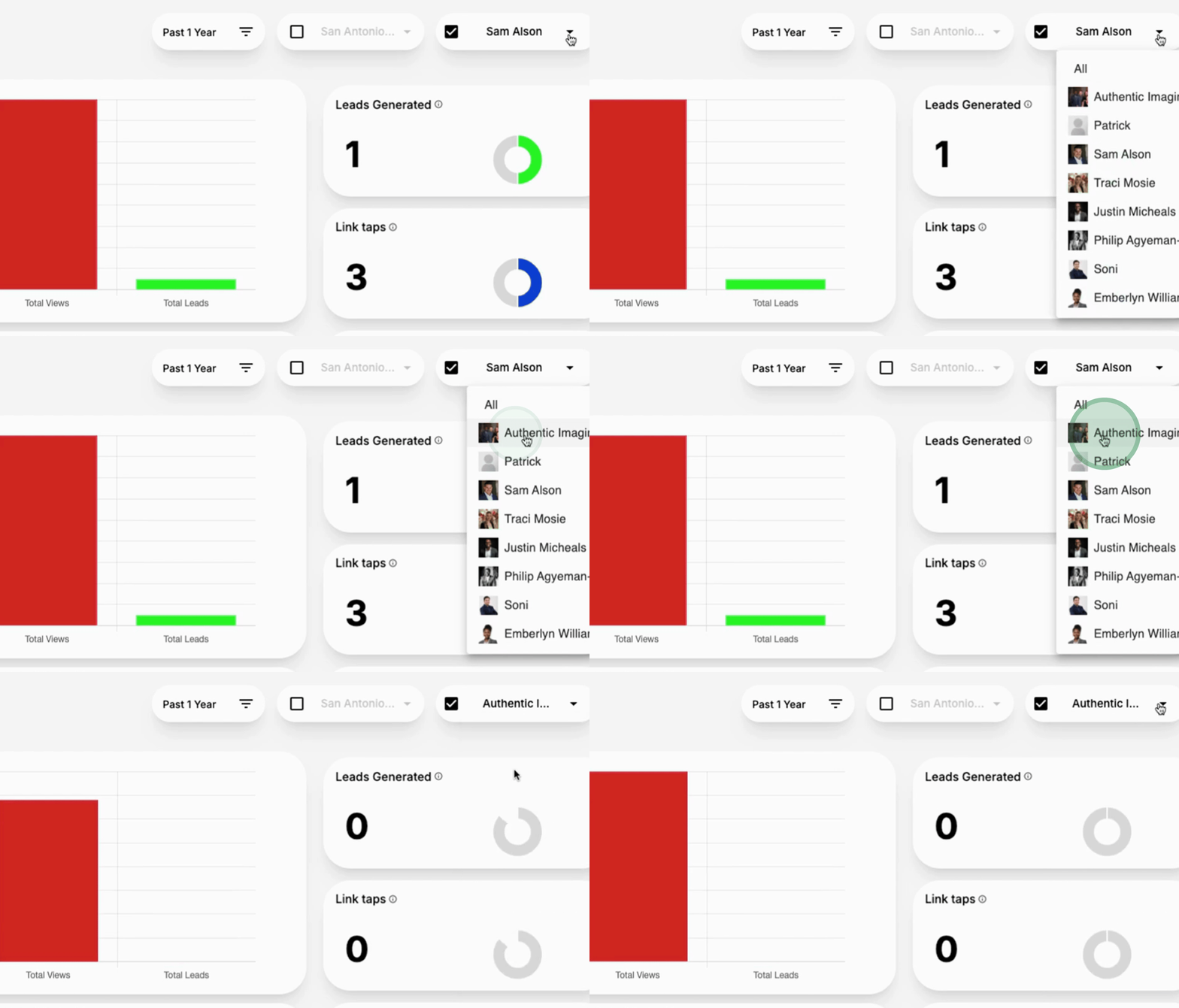
This overview of the analytics features will help you effectively monitor and evaluate your team's performance.
